Find your way around Refine
The left rail is the home for navigation. Your selected screen fills the content area beside it. The logo sits above the navigation; Collapse menu sits at the bottom and remains available while the rail scrolls. Expand the rail again with >>. On a phone, open the rail from the Refine button above the content.
Choose your context
Node selects the node you are working with. Open its dropdown to select a node or choose Add Node… to create one. Use Settings → Nodes for connections and fleet management.
Reporter chooses who submits new Goals and whose Todo lists are shown. Its dropdown includes Add new reporter…. Use Settings → Reporters to manage existing reporters.
Both menus identify their context with a heading. Node, Reporter, and Tools open their menus beside the top of the row, moving upward when needed to fit the screen. Their full rows respond to clicks and keyboard focus.
Main screens
| Screen | Use it to |
|---|---|
| Dashboard | Review work that needs attention and see overall progress. |
| Features | Organize related Goals around a larger outcome. |
| Goals | Create, filter, and follow Goals and their rounds. |
| Changes | Inspect integrated changes and available follow-up actions. |
| Control | Inspect processes and run target-app, worker, and daemon actions. |
| Settings | Configure Nodes, Reporters, Prompts, Hubs, Target App, and Runtime. |
Click the Main header to show or hide its links. This does not change the selected screen. Skills and Hubs also expand and collapse independently. Refine remembers these choices and whether the rail itself is collapsed.
Tools and open windows
Open Tools, marked with a wrench, to choose Agent, Agent in Worktree, System, Files, Todo List, Terminal, or Planning Agent. Existing windows remain listed below the menu when the dropdown closes. Select a window to give it the full content area.
Switching screens preserves running sessions. Returning to the underlying Main screen restores its mounted content. Browser Back and Forward also move between screens and windows. A window’s close action is labeled Close and stop when it owns a running terminal or agent.

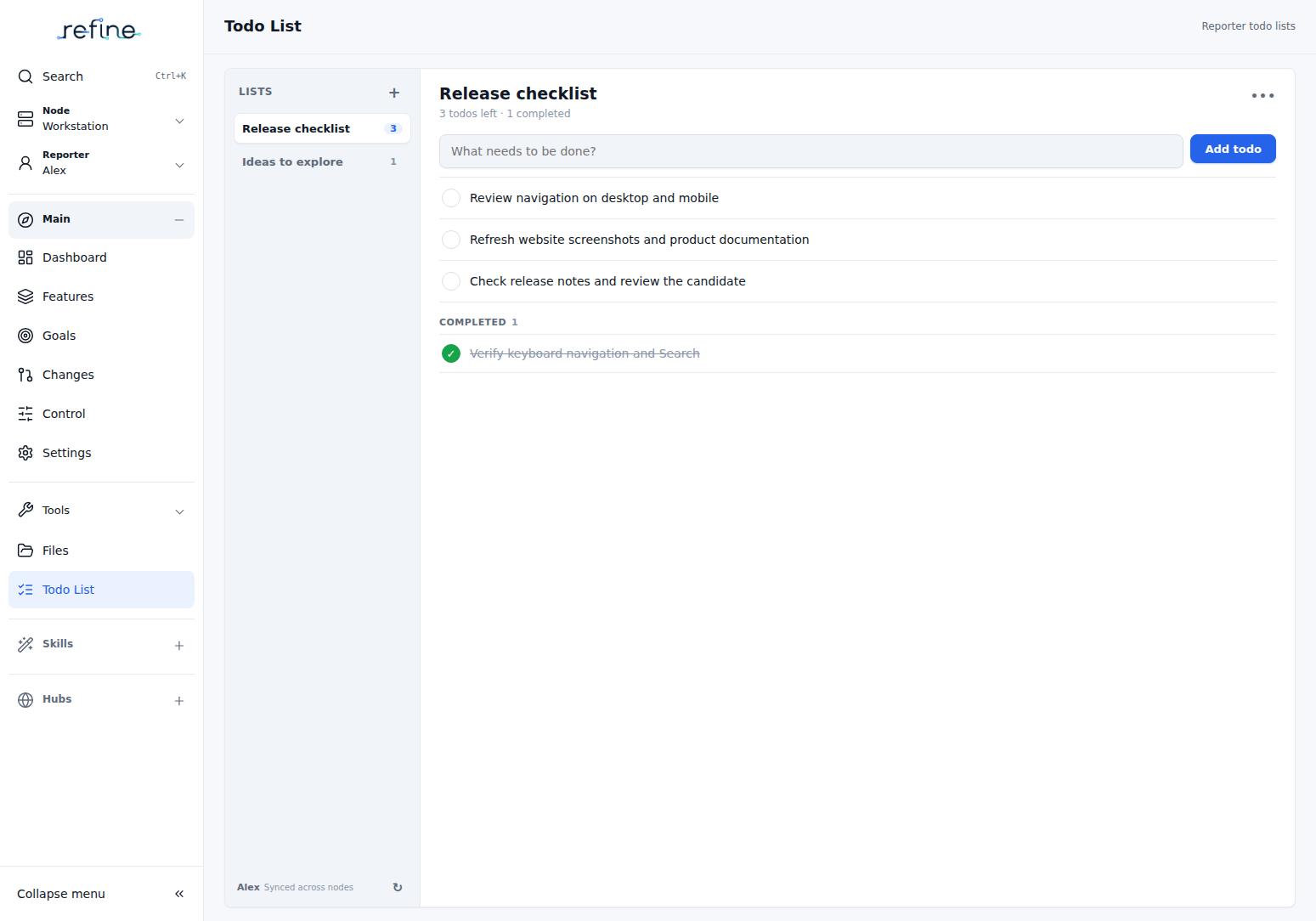
Files opens the file browser and preview. System contains logs, health information, and diagnostics. Todo List gives the current Reporter a full-width workspace, with lists on the left and tasks on the right. Todo checklists are separate from workflow Goals.
Control: processes and target-app actions
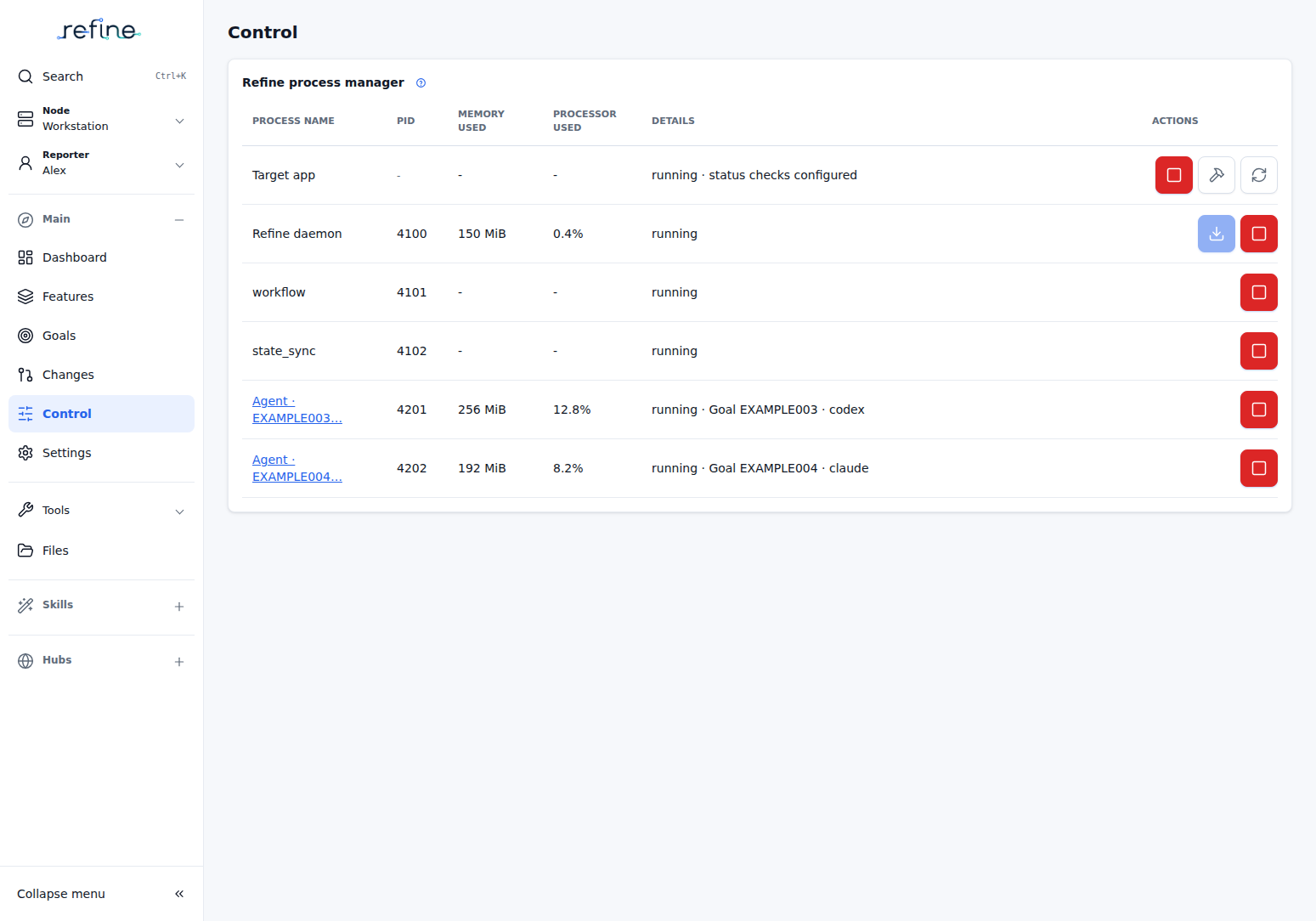
Open Control from Main to see the selected node’s target app, daemon, background workers, and active agents. Process rows include identity, resource use, details, and available actions.
Actions use icons. Hover over a button or focus it with assistive technology to identify it:
| Icon | Action |
|---|---|
| Play | Start the target app or a worker; unpause workflow where available. |
| Square | Stop the corresponding app, worker, daemon, or agent. |
| Hammer | Build the target app. |
| Circular arrows | Check target-app status. |
| Pause | Pause workflow automation where available. |
| Download | Update Refine when an update is available. |
Buttons reflect the current process state and supported actions. Configure target-app instructions in Settings → Target App. Existing links to Settings → Processes open Control.
Skills and Hubs
Expand Skills to see enabled manual Skills. Select one, supply any requested inputs, and follow its agent window. Add skill… creates reusable instructions; Manage Skills opens the shared resource editor. Assign Skills to workflow steps or events through Settings → Prompts.
Expand Hubs to open project sites and reports in a browser tab. Add Hub… creates a Hub; Manage Hubs opens its configuration and records. From the management screen, a Hub’s Run Skill action launches its associated maintenance Skill. See Maintain a Hub and Metrics Hub.
The short descriptions under Skills and Hubs appear only when their section and the rail are expanded. Collapsing a section leaves running work alone.
Search from anywhere
Choose Search, press Ctrl+K, or use ⌘K on Mac. Search works while a terminal, agent, or dialog has focus. Escape closes it and restores focus to the previous control.
Settings also has Workspace controls & support, which contains shared creation shortcuts, quick status actions, appearance, and contact controls.
Screenshots show the real interface with a fictional example workspace. They do not represent a live Goal run.